MacMon keeps watch over your Mac's security settings, what starts at login, who can read your files, and what your AI coding agents do. When something changes, it tells you what, when, and why it matters.
Free · Requires macOS 15 Sequoia or later · Apple silicon and Intel
Features
An audit that keeps running.
A security checklist tells you how your Mac is set up today. MacMon runs its checks every 15 minutes, keeps the results, and records every change, so you can see when a setting was turned off and what else happened around then.
Security checks, every 15 minutes
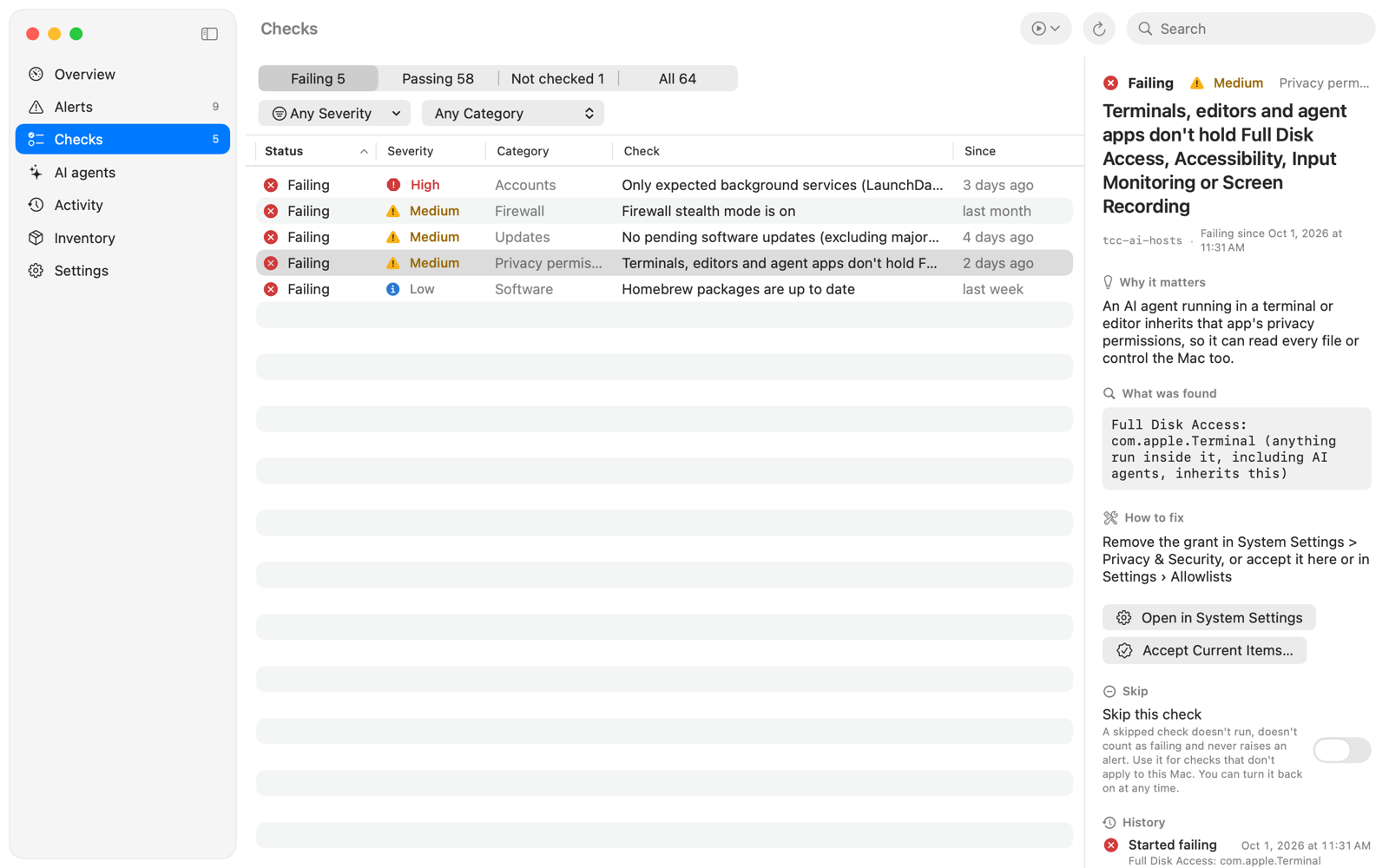
Over 60 checks cover FileVault, SIP, Gatekeeper, the firewall, automatic updates, screen lock, sharing, admin accounts and credential files. Each failing check explains why it matters and how to fix it. MacMon never changes a setting itself.
Know what changed
The first run records what's on your Mac. After that, every new launch agent, login item, privileged helper, configuration profile, trusted certificate, admin or sudoers change shows up as an event, with when it happened.
AI agent activity
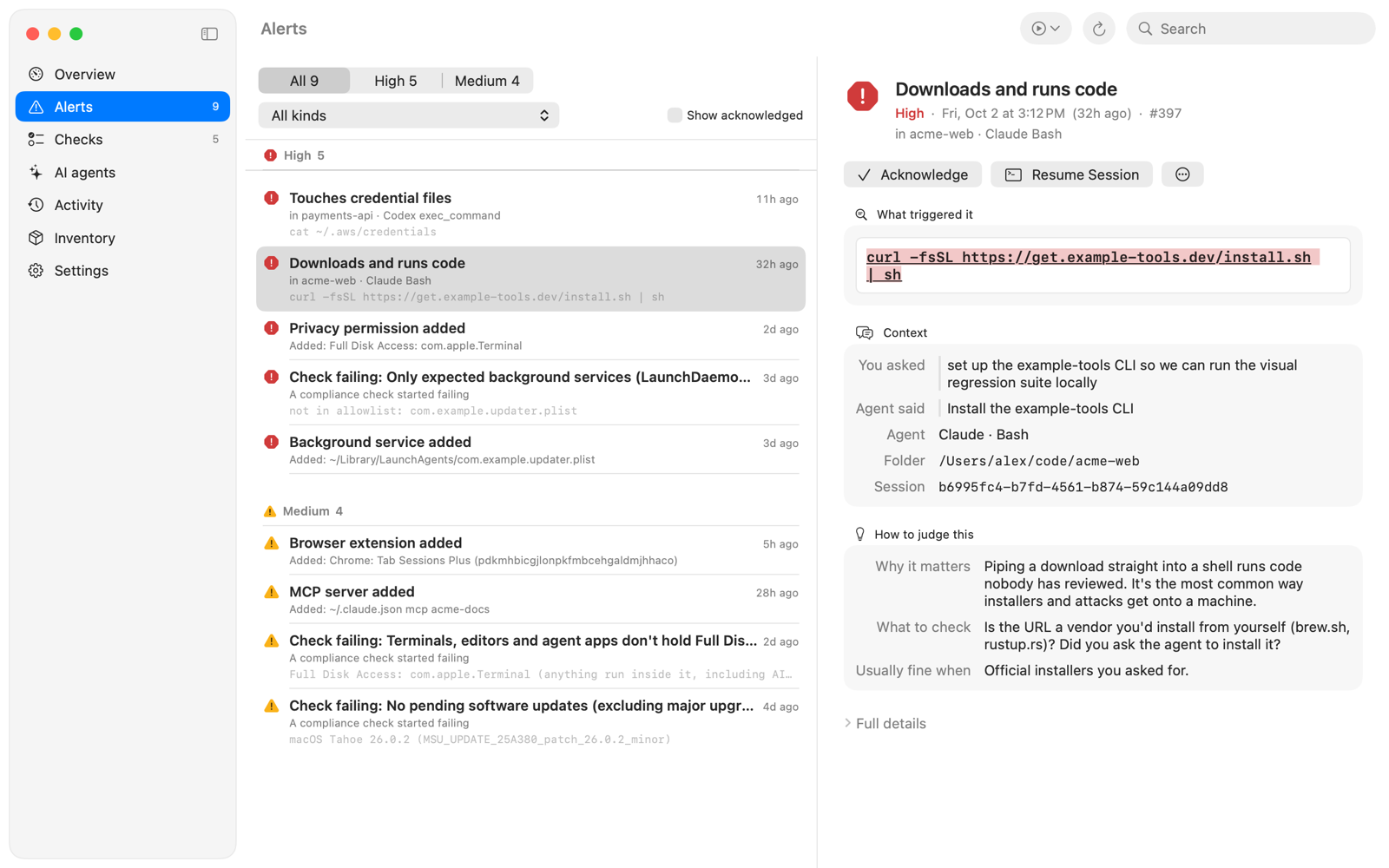
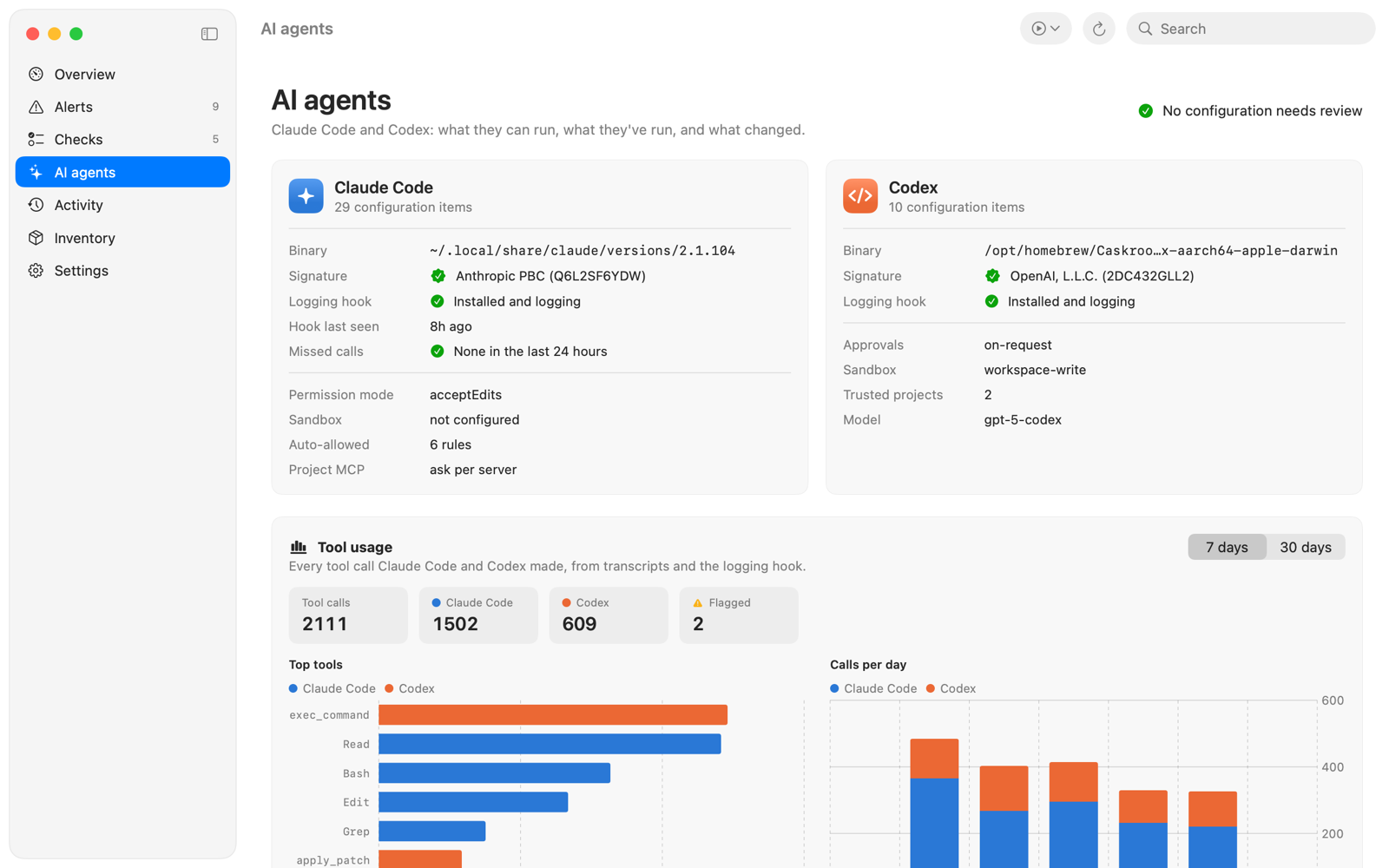
Every Claude Code and Codex tool call is logged and checked for risky patterns: download-and-run, reverse shells, keychain access, an agent editing its own hooks, or deleting its transcripts. Alerts show the command, what the agent said it was doing and the prompt before it.
AI agent configuration
See every hook, MCP server, plugin, skill and permission your agents load, with flags for bypass-permissions mode, unpinned npx servers, API redirection and disabled hooks. Mark items you've reviewed as trusted, and MacMon flags them again if they change.
Privacy permissions
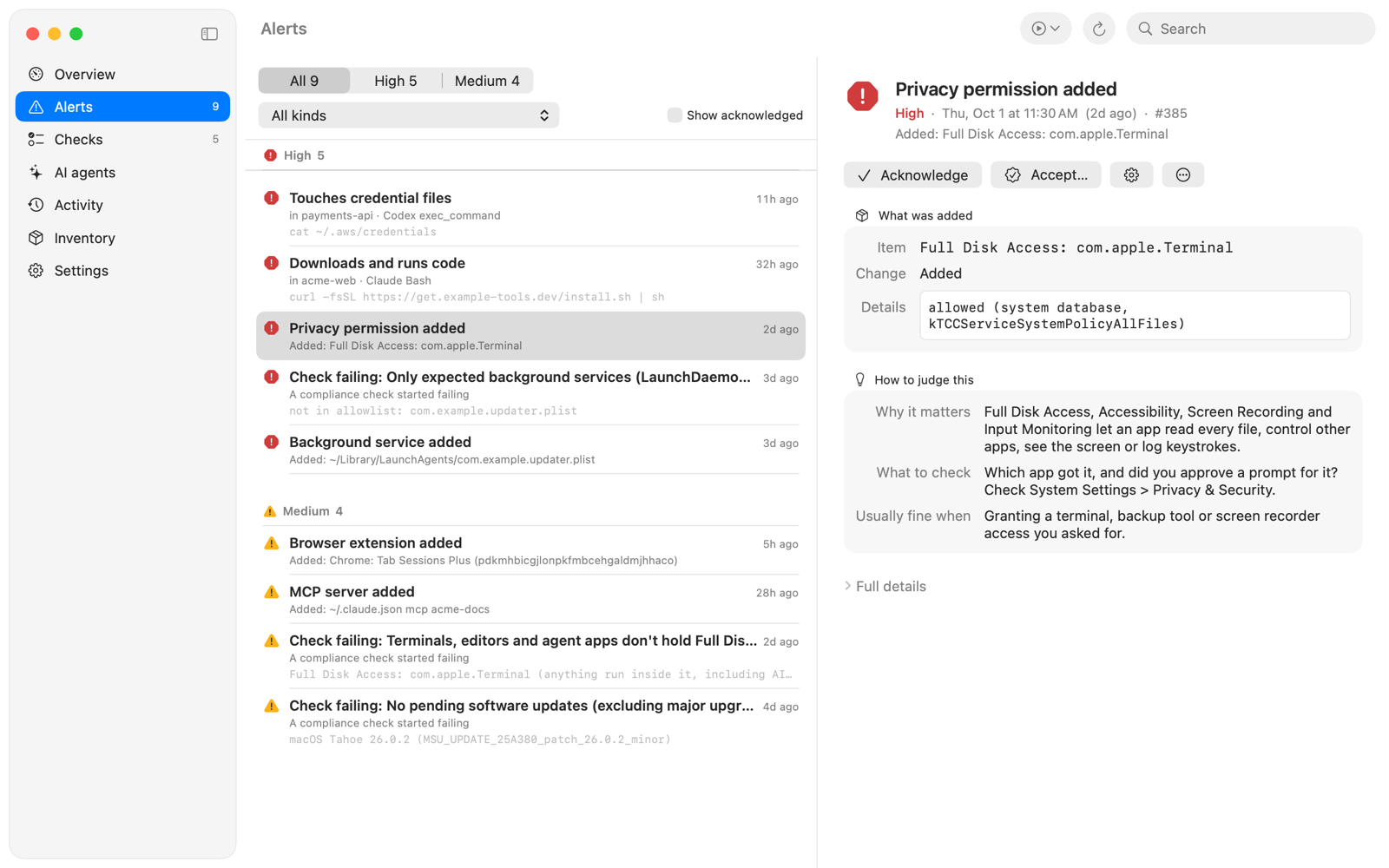
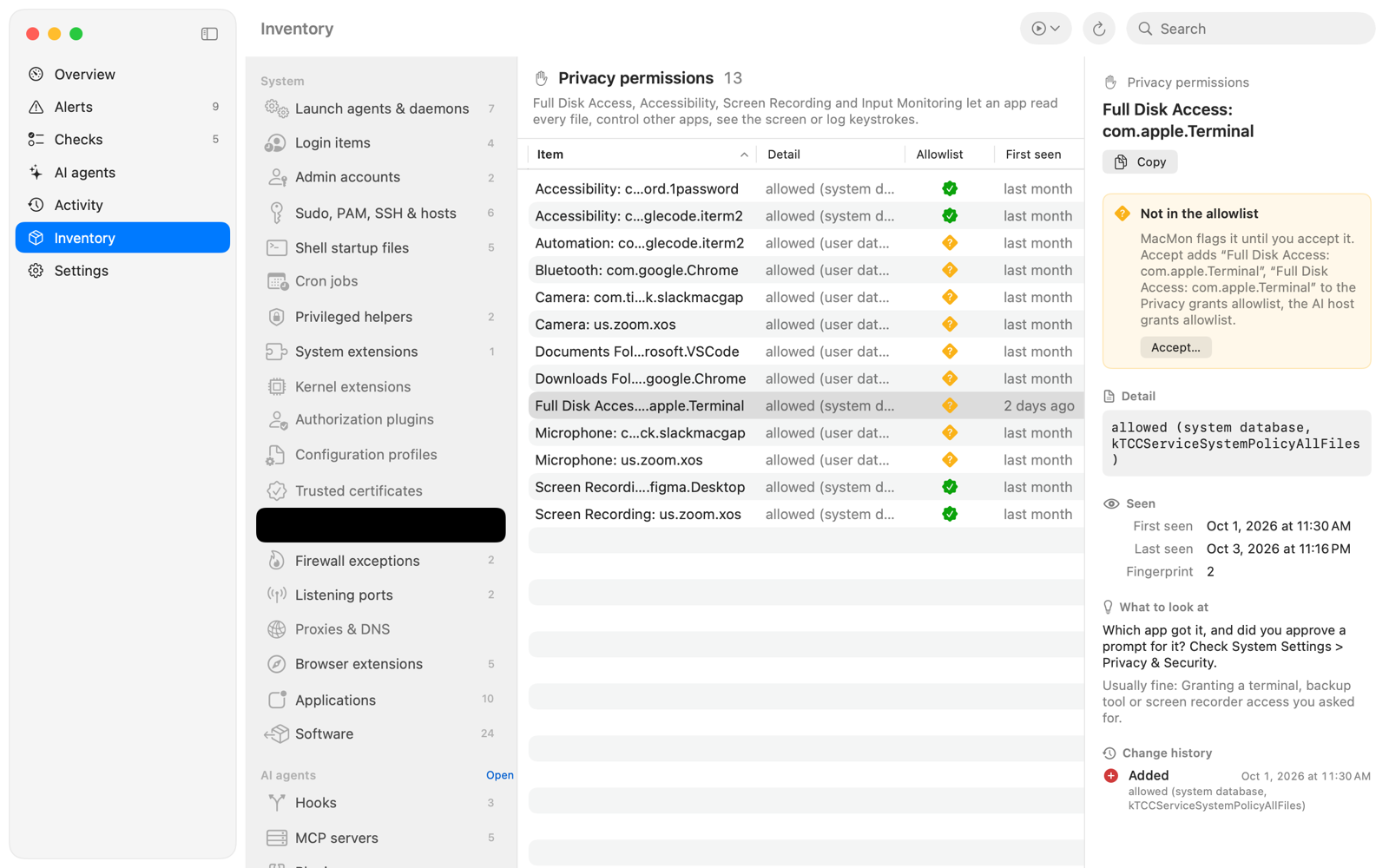
Every Full Disk Access, Accessibility, Screen Recording and Input Monitoring grant, with when it appeared. Terminals, editors and agent apps holding them are flagged, because an agent running inside them inherits the access.
Software and exposure
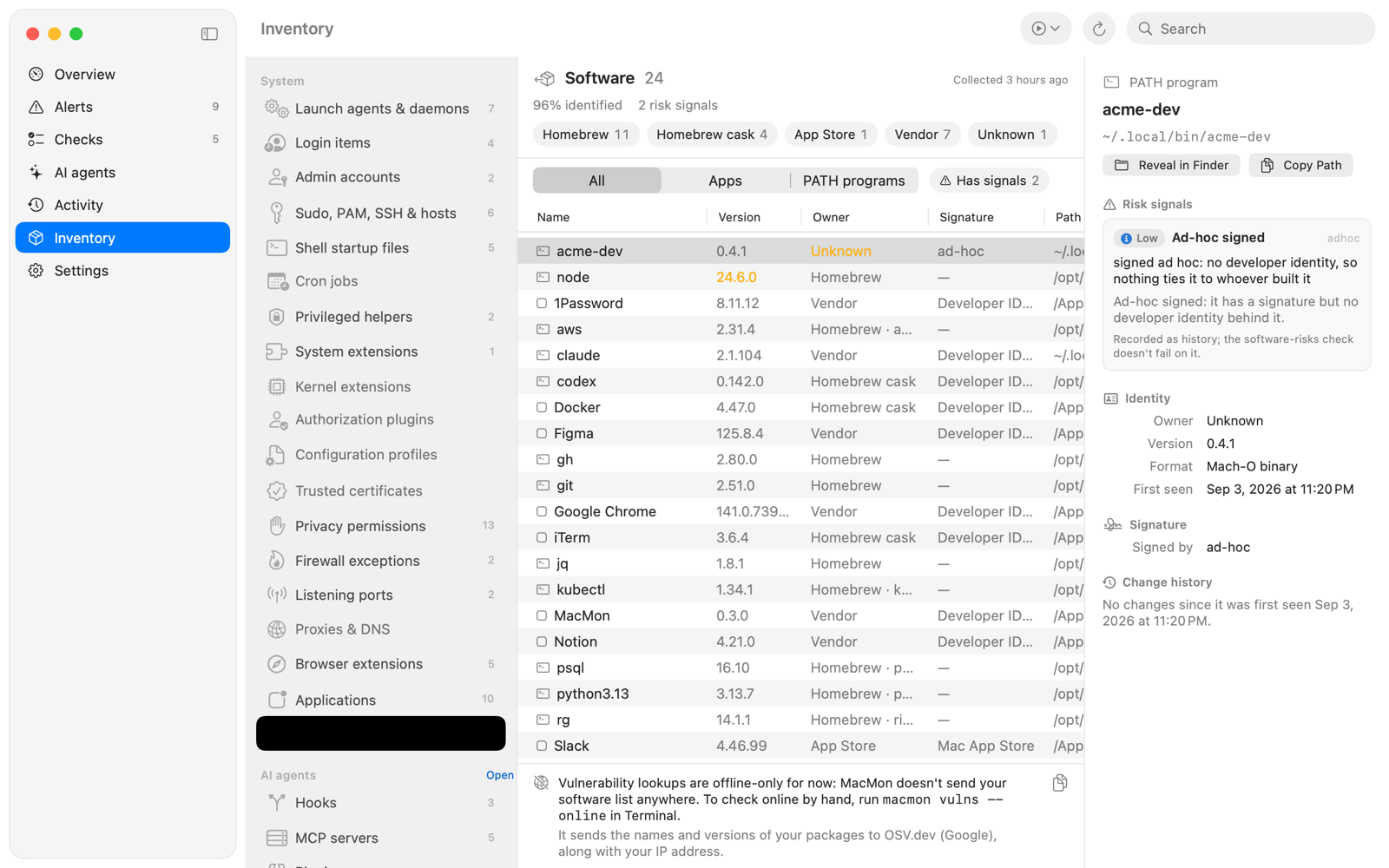
Apps and command-line tools traced to where they came from, with offline risk signals. Listening ports, proxies, DNS resolvers and browser extensions in Safari, Chrome, Firefox and others.
A timeline of what happened
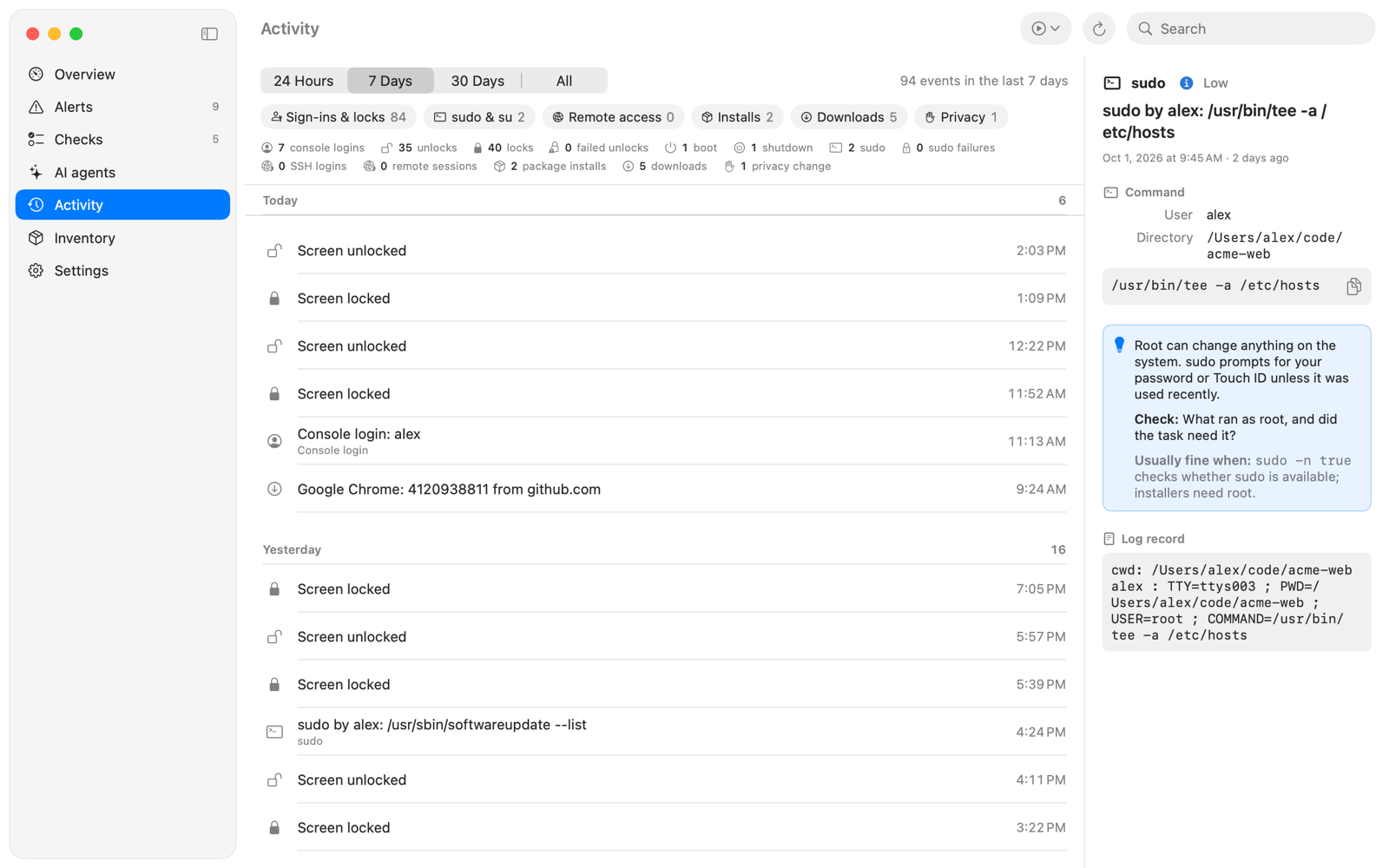
Screen unlocks and failed attempts, sudo, SSH sessions, package installs and downloads, kept as a history you can search. See when something was turned off and what else changed around then.
Alerts that explain themselves
The menu bar shield takes the color of the worst open alert. Medium and high alerts post a notification, and every alert says why it can matter, what to look at and its common harmless causes.
A closer look
Lives in your menu bar.
A shield in the menu bar shows the worst open alert. Open the window to explore checks, alerts, inventory and history, and act on them: acknowledge an alert, accept a change, or jump to the right System Settings pane.
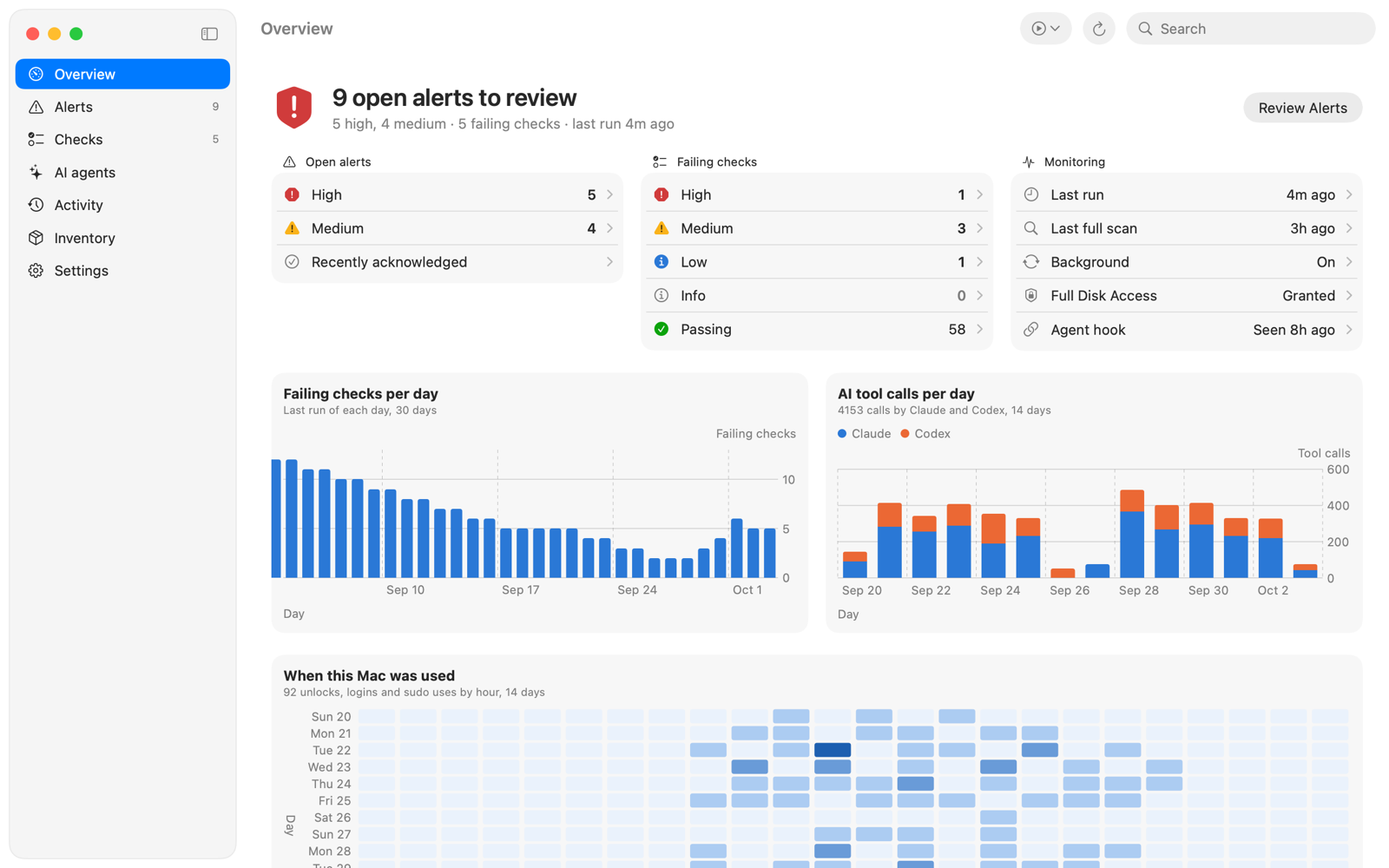
Your Mac's security at a glance
Catch risky AI agent commands
Know when an app gets Full Disk Access
Clear checks, with the fix
See what your AI agents can do
Who can read your files?
Know what's installed
A timeline of what happened
How it works
Set up in a minute. Nothing changes until you click.
Turn on background checks
MacMon adds a background item you can see and switch off in System Settings › General › Login Items & Extensions. It runs every 15 minutes, even while the app is closed.
Set your baseline
The first run records what's on your Mac today. After that, MacMon tells you about additions, removals and changes instead of everything that already exists.
Optionally, watch your agents
Install the logging hook for Claude Code or Codex to record every tool call as it happens. It never blocks a call and adds about 5 ms.
Review and act
Each alert explains why it matters and what to look at. Acknowledge it, accept the change, or follow the fix. MacMon never changes a setting for you.
Private by design
What MacMon sees stays on your Mac.
A security monitor sees a lot: your settings, your login history, the commands your AI agents run. That's exactly why none of it ever leaves your Mac. MacMon has no servers, and we never receive your data.
No analytics, no crash reporting, no ads, no third-party code.
No network connections. Every scan runs with network requests refused.
Your history is kept in a private folder on your Mac that only your account can read.
Full Disk Access is optional and used only to read the privacy permission databases.
Honest about limits
A tripwire, not a lock.
MacMon is an audit tool. It shows you what changed so you can decide what to do. It works best alongside the protections built into macOS, not instead of them.
What it's good at
Noticing security settings that drift or get turned off.
Spotting new persistence, trust and access: launch items, helpers, certificates, profiles, admin accounts and privacy grants.
Keeping an independent record of what AI agents ran, which they can't quietly rewrite later.
Explaining each finding in plain language, with the fix.
What it doesn't do
It doesn't block anything. Alerts arrive on the next check, up to 15 minutes later.
It runs as you, not as root, so it can't see other users' data or every root-only file.
Malware running as you could turn it off. MacMon notices when its hook goes quiet, but it can't guarantee it.
Its rules will have false positives. An alert means "look at this", not "you've been hacked".
See what changed on your Mac.
MacMon runs entirely on your Mac, with no account and nothing to sign in to.